How to Make Finder Windows Larger on macOS
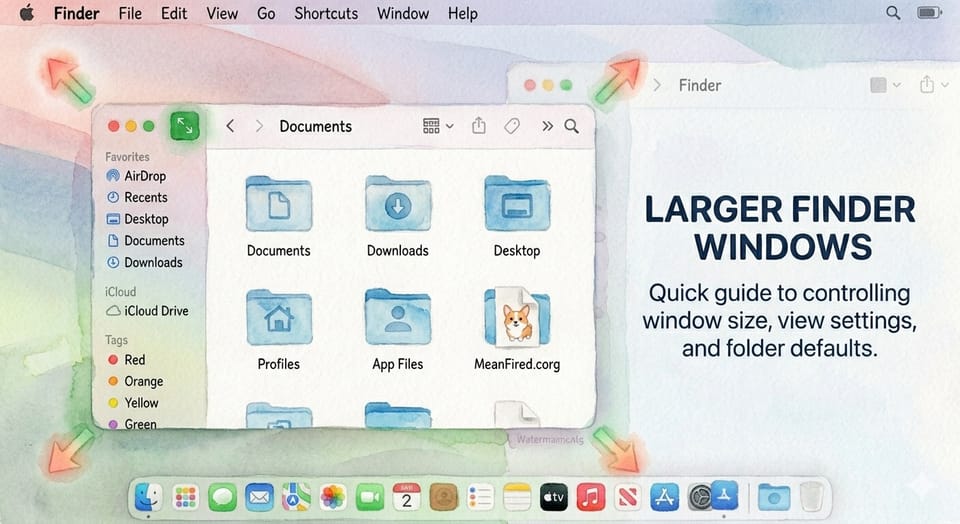
Here's a quick guide to controlling Finder window size, position, and view settings on your Mac.
Quick Ways to Resize a Finder Window
- Option + double-click any edge of a Finder window to auto-expand it to fill the screen in that direction.
- Hold Option (⌥) and click the green button (top-left corner) to zoom the window to fit its contents.
- Click the green button normally to expand the window to full screen.
Set a Larger Default Size for All New Windows
- Open a new Finder window.
- Drag the corners/edges to your preferred large size.
- Hold Command (⌘) while closing the window (click the red button) to save the preference.
- Next time you open Finder, it will launch at your customized size.
Permanently Save View Settings
To set your preferred folder layout (Icon, List, or Column view) across all folders:
- With your Finder window open, go to View → Show View Options (or press Command + J).
- Click Use as Defaults to apply that size and layout to every folder on your Mac.
How Finder Remembers Windows & Settings
Finder tracks three things independently:
1. Window Size & Position
Position data is saved per location (e.g., the Documents folder), not per window. If you reopen a window to the same folder, Finder restores the last-used position and size.
2. Folder View Mode
The view you're browsing (Icon, List, or Column) is remembered per folder. However, opening a new Finder window uses a universal default — whatever view mode was last used when opening a new window.
3. View Options Per Folder
In Show View Options (Command + J), you'll see two settings:
- Always Open In — overrides the default for this specific folder.
- Browse In — used when you double-click into a subfolder while already browsing.
Pro Tips
- Open folders in new windows instead of tabs: Command + double-click a folder, or Control-click → Open in New Window.
- Keep one Finder window open at all times and use Tabs for different folders — this avoids the frustration of Finder resetting window sizes and positions every time you open a new one.
- Hide the toolbar (View → Hide Toolbar) if you prefer the classic Finder behavior where every double-click opens a new window — though the toolbar is generally more useful.
- Use View → Show View Options to fine-tune icon size, sorting, and other display settings per folder.
Based on content from MacMost.com.